From Bob’s original Learning Nuggets archive. Instructions and screenshots refer to Trial Director 360.
Any good basic training will include a section on pretreating exhibits, like highlighting, drawing arrows, etc. as you prepare an exhibit ahead of time. However, all the annotation tools in the TrialDirector (TD) 360 toolchest aren't all available in the Evidence part of TD 360. There are several tools and techniques available only in Presentation.
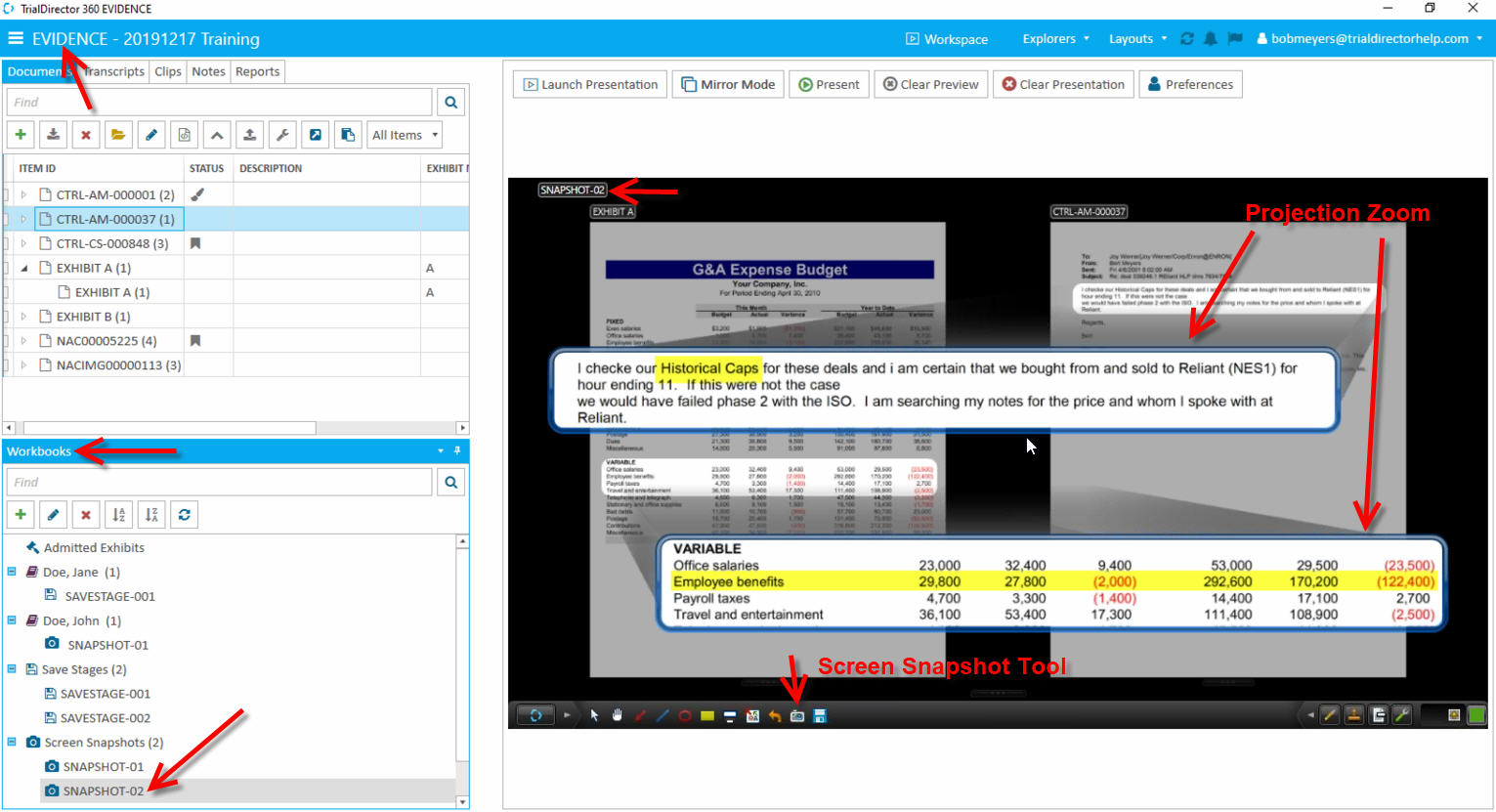
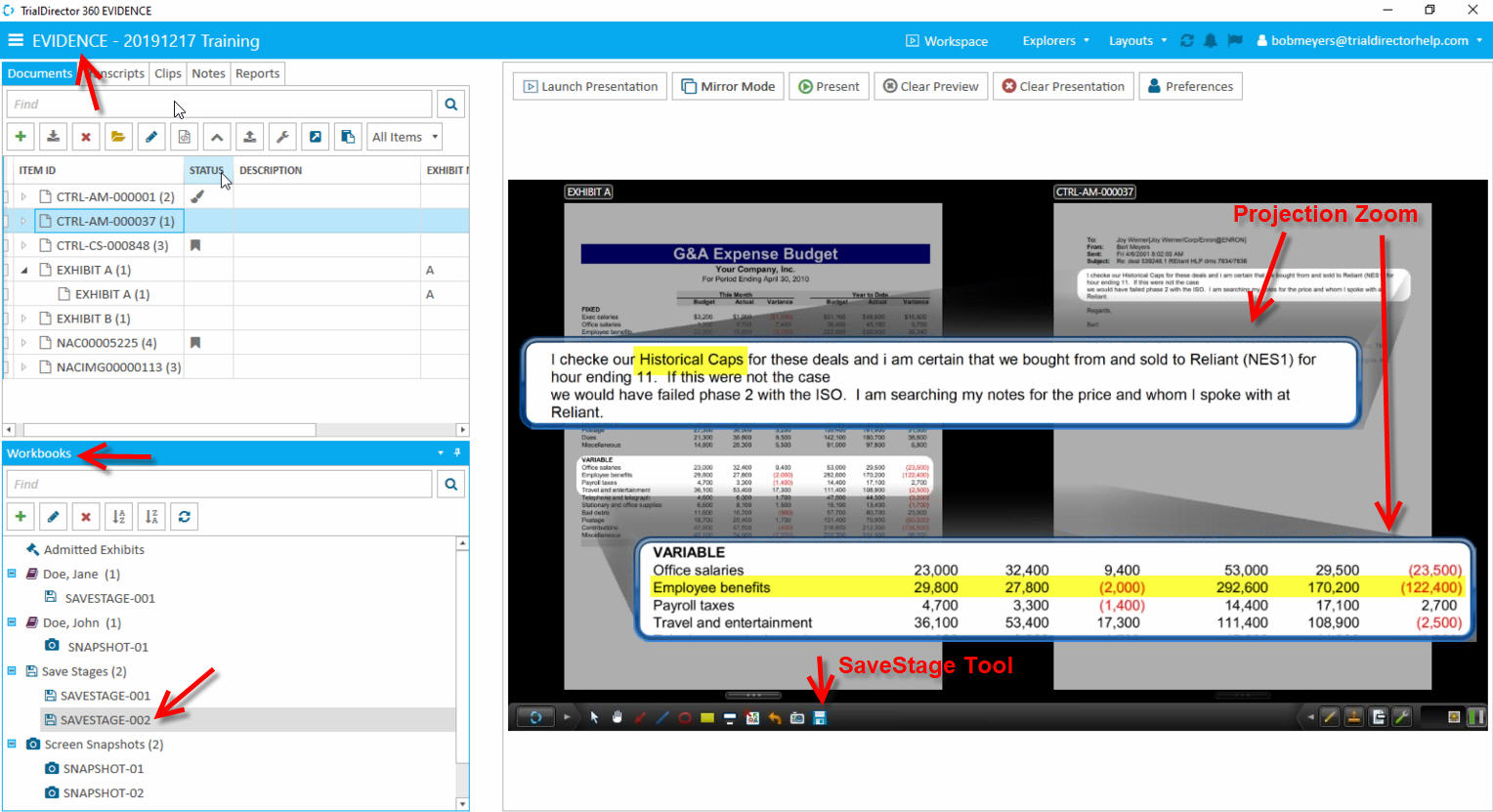
The tools in Presentation that also help you prepare pretreated documents are called Screen Snapshots and Save Stages. Both allow you to use tools and techniques in Presentation, but diverge on the end result:
Screen Snapshots allows you to create a static picture of the presentation screen.
- It's fairly low resolution document
- It does not allow for changes within the screen snapshot
- A new image file is generated (.png), which is saved a new folder wherever you're case is located
- The document is saved in a Screen Snapshots workbook
- When presenting a screen snapshot, you will see what looks like a screen within a screen
- When needing to place a copy of the screen snapshot, drag and drop the document from the Screen Snapshots workbook (since version 2020.4.0)
- You can rename a screen snapshot
Save Stages allows you to save an interactive, editable screen:
- The file generated as a saved stage is the same resolution as whatever you started with
- A saved stage will appear exactly as you saved whatever was on your screen, but you can change any element of a saved stage. More like a jumping off point, for a discussion of an exhibit
- The document is saved in a SaveStage workbook
- When presenting a Save Stage, you will see exactly whatever you saved, including any annotations
- When needing to place a copy of the Save Stage, drag and drop the document from the SaveStage workbook
- You can rename a SaveStage
The last component of this topic will list several of the useful tooks available in Presentation, that are not available to us in the document set up portion:
- Zones
- Projection Zoom
- Magnification Zoom
- Yes/No Stamps
- Enumerated numbers/letters
- Blur
- Signature Compare
- Whiteboard
Instructional screenshots