From Bob’s original Learning Nuggets archive. Instructions and screenshots refer to Trial Director 6.8.
We know we have to make a decision on how we want our exhibits to be named as as ingest/load our exhibits into a Trial Director (TD) 6.8 case. However, do we all know we have up to four, count them, 4 different ways we can name any given exhibit?
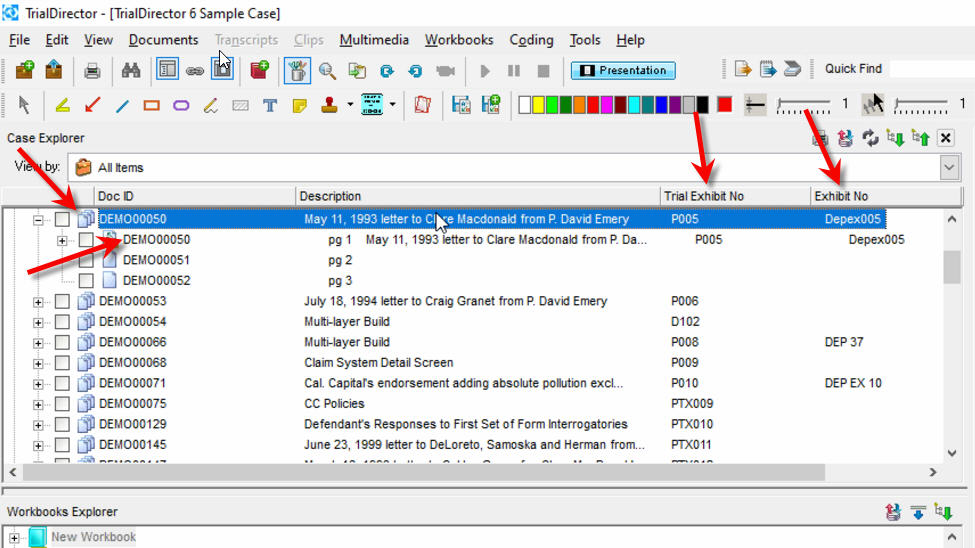
- Document/Page ID
- This is the name we assign when we load/ingest exhibits
- This is the name we assign when we load/ingest exhibits
- Trial Exhibit #
- This is a second opportunity to give an exhibit another name
- Whatever is entered for Trial Exhibit # will be available to use to generate Exhibit Stickers for digital placement on exhibits (as an annotation).
- This number, when entered/used, will also automatically be listed in a Trial Exhibits workbook.
- This is a second opportunity to give an exhibit another name
- Exhibit #
- This is a third opportunity to enter an additional name for an exhibit
- This is a third opportunity to enter an additional name for an exhibit
- Common Name
- This is your fourth opportunity to give an exhibit another name
- This is your fourth opportunity to give an exhibit another name
Regarding all four naming methods, there are important things to know about any/all of them:
- Any and all naming conventions must be unique - no duplicates
- Any method can be used to be displayed when presenting an exhibit in presentation (in the upper left corner)
- Any method can be used to call up an exhibit by name, in presentation
- Document/Page ID, Trial Exhibit # and Exhibit # can be used to present when using workbooks to present exhibits
Tips for:
- Document/Page ID
- Methods for creation
- Importing via load file (i.e., .oll file)
- Drag-and-drop file into a case
- Browse to files to ingest
- Importing via load file (i.e., .oll file)
- Best practice: have your files be named how you want them to appear as your document/page ID, before loading into TD
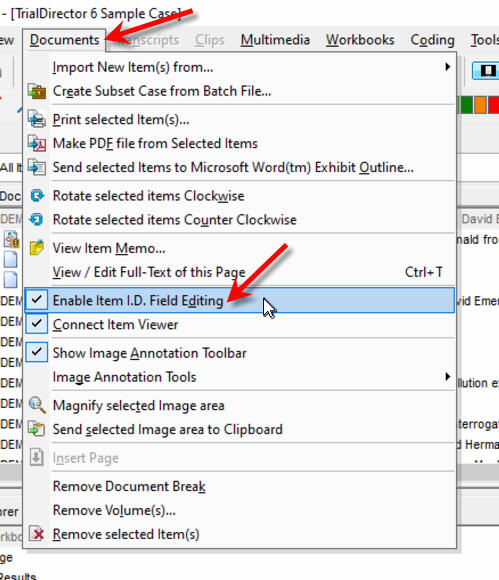
- If you need to rename (assign) a document/page ID, make sure you've Enabled Item ID Field Editing (under Document drop-down menu item)
- If you need to rename (assign) a document/page ID, make sure you've Enabled Item ID Field Editing (under Document drop-down menu item)
- Methods for creation
- Trial Exhibit #
- Methods for creation
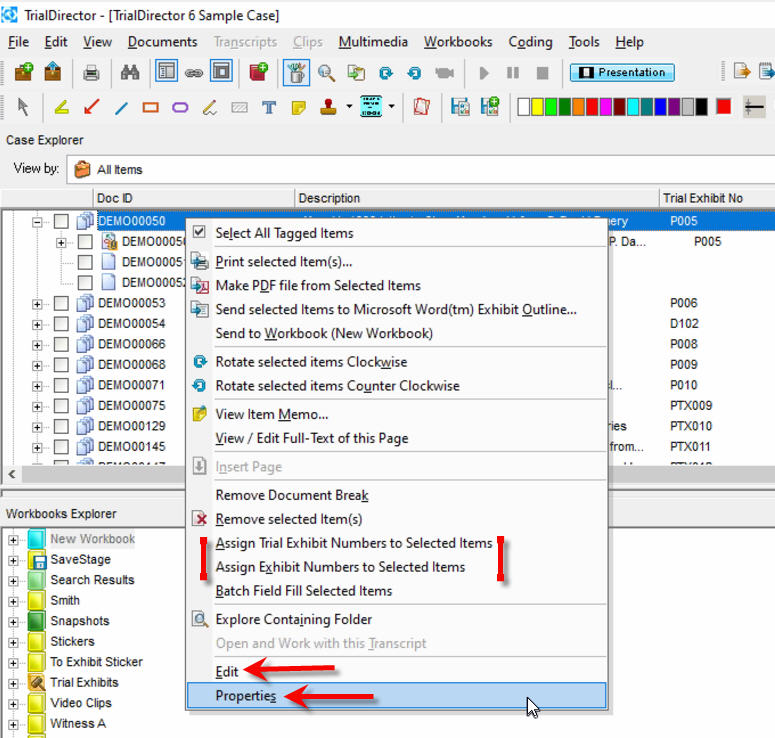
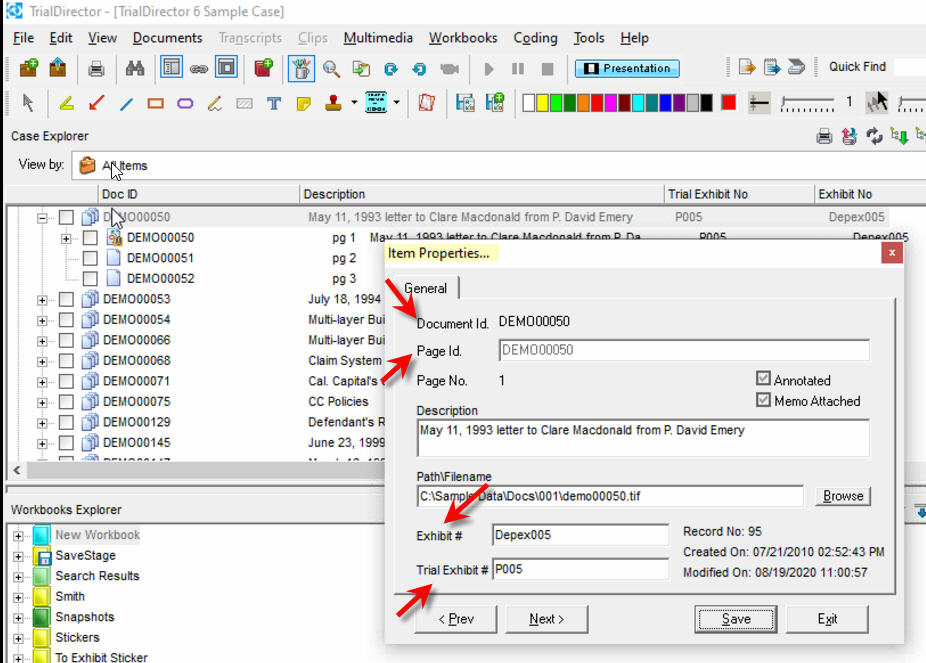
- Right-click on file, go to Properties, enter into Trial Exhibit # box
- Right-click on file, go to Edit, enter into Trial Exhibit # box
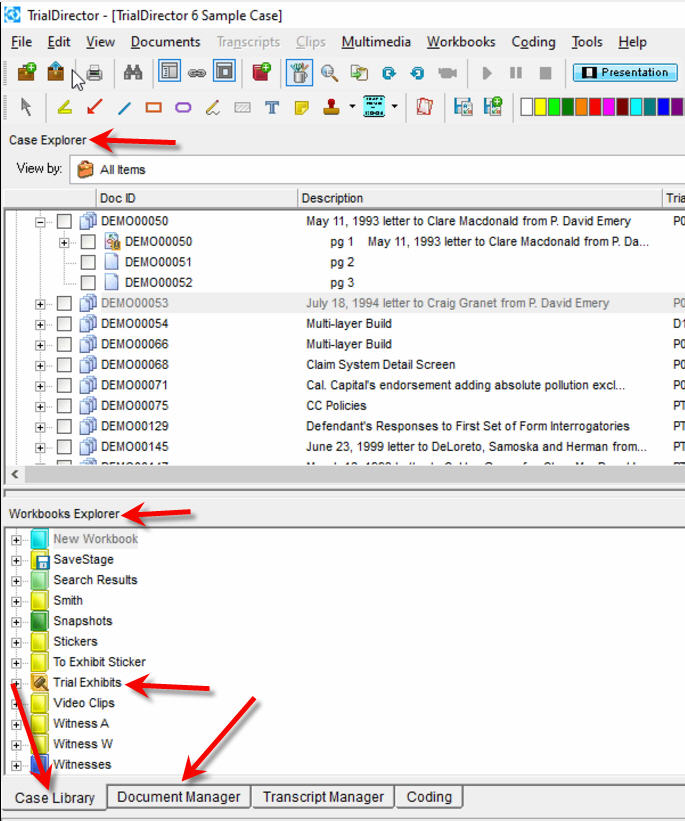
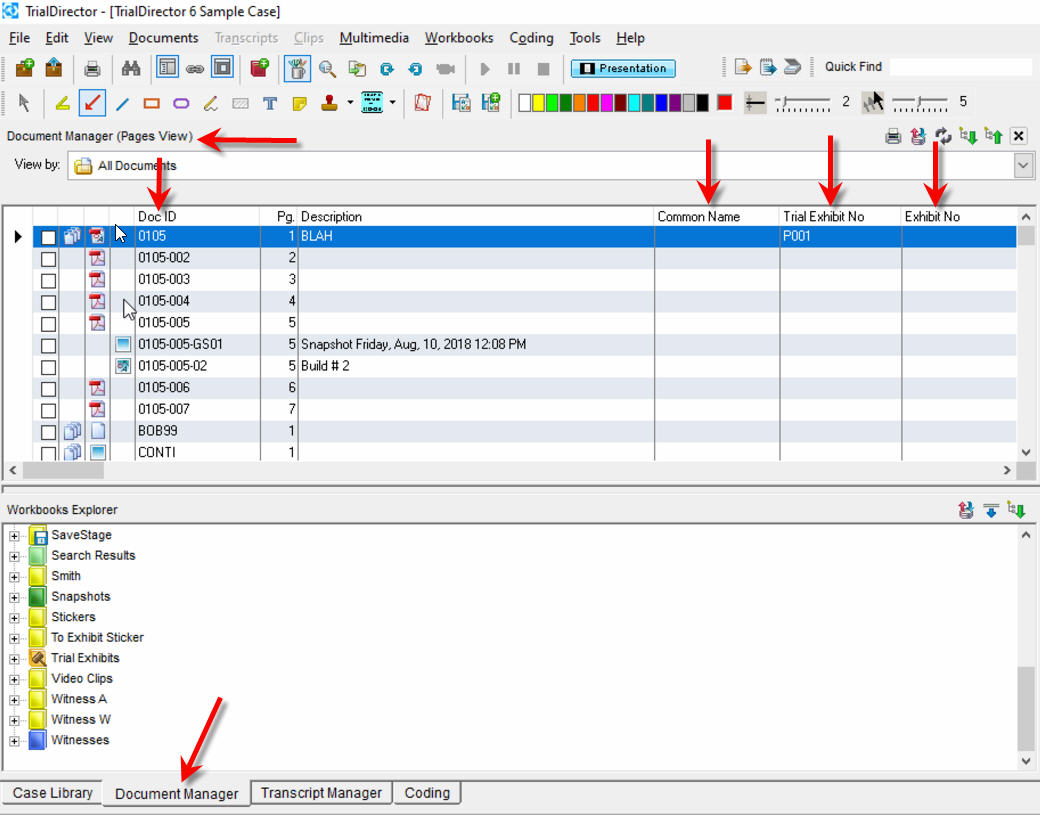
- Go to the Document Manager tab (bottom of main display)
- Enter into Trial Exhibit # box
- Be careful when working here. Every page is listed, not just documents, by default
- Be careful when working here. Every page is listed, not just documents, by default
- Enter into Trial Exhibit # box
- Bulk add or update (or assign) Trial Exhibit # fields:
- Under the Tools drop-down menu list, or
- Selecting your exhibits, in the Case Explorer, the assign new numbers via a right-click menu list
- Under the Tools drop-down menu list, or
- Right-click on file, go to Properties, enter into Trial Exhibit # box
- Methods for creation
- Exhibit #
- Methods for creation
- Right-click on file, go to Properties, enter into Exhibit # box
- Right-click on file, go to Edit, enter into Exhibit # box
- Go to the Document Manager tab (bottom of main display)
- Enter into Exhibit # box
- Be careful when working here. Every page is listed, not just documents, by default
- Be careful when working here. Every page is listed, not just documents, by default
- Enter into Exhibit # box
- Bulk add or update (or assign) Exhibit # fields:
- Under the Tools drop-down menu list, or
- Selecting your exhibits, in the Case Explorer, the assign new numbers via a right-click menu list
- Under the Tools drop-down menu list, or
- Right-click on file, go to Properties, enter into Exhibit # box
- Methods for creation
- Common Name
- Methods for creation
- Go to the Document Manager tab (bottom of main display)
- Enter into Common Name box
- Be careful when working here. Every page is listed, not just documents, by default
- Be careful when working here. Every page is listed, not just documents, by default
- Enter into Common Name box
- Go to the Document Manager tab (bottom of main display)
- Methods for creation
Instructional screenshots