From Bob’s original Learning Nuggets archive. Instructions and screenshots refer to Trial Director 6.8.
When preparing to work with a case, there are a few important steps of which you will want to be aware to ensure your new case is created in the best way possible. These might be considered best practices.
- If working on a laptop only, create a new folder on your main (C:\) drive for your Trial Director cases
- Example: C:\TrialDirector Cases
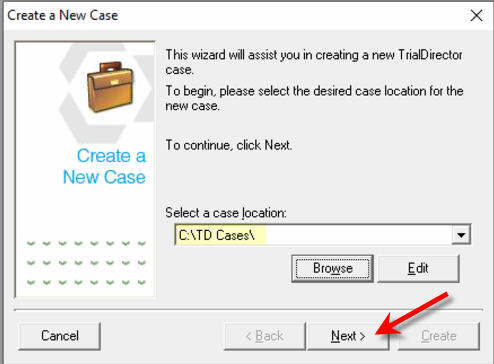
- Or even, C:\TD Cases
- Or even, C:\TD Cases
- Example: C:\TrialDirector Cases
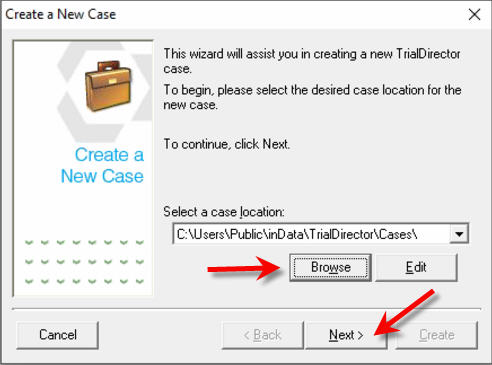
- To create a new case, go to File-Create a New Case
- Browse to the new folder you just created on your hard drive. Click Next.
- Click Next.
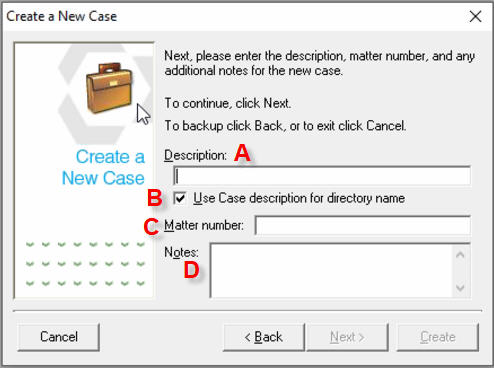
- Enter a Description (A), which would be some form of your case name, client, or other (short) description of how you want your case name to appear.
- Try not to use punctuation when entering your preferred case name
- If you feel you need some sort of punctuation, try to use a dash (-) or underscore (_)
- Shorter is better when entering a case name
- If you feel you need some sort of punctuation, try to use a dash (-) or underscore (_)
- What you enter here will become a folder on your system (in the case of the examples here, a new folder will be created directly below the C:\TD Cases folder), if you've left the checkmark next to Use Case description for directory name (B)
- A Matter number (C) is not required and there are no formatting best practices - enter a matter number here, if desired
- Notes (D) again are not required. Enter any case notes you might need.
- Try not to use punctuation when entering your preferred case name
- Click Next (which becomes available once you start typing in the Description box).
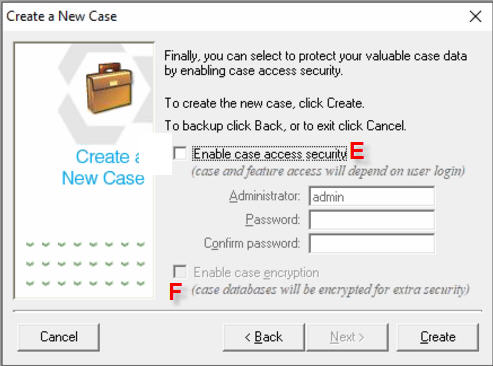
- This window appears to allow you to Enable case access security (E), which basically allows you to enable the use of a username and password to open a case.
- If you ever lose the username or password, there is no effective way to retrieve it.
- I typically recommend against this feature, if your laptop is secured.
- I typically recommend against this feature, if your laptop is secured.
- If you ever lose the username or password, there is no effective way to retrieve it.
- If you have enabled case access security, you can then also Enable case encryption (F).
- This option provides additional security by scrambling your case data so that it cannot be opened and read by any other person or program. However, if you enable case encryption, you will experience a minor loss in performance.
- This option provides additional security by scrambling your case data so that it cannot be opened and read by any other person or program. However, if you enable case encryption, you will experience a minor loss in performance.
- Click Create.
Instructional screenshots